

your-domain.com/my-plugin. Because the hub verifies that you own the domain,
anyone browsing the hub can trust that a plugin genuinely comes from you.
Browsing the hub is open to everyone; only publishing needs an organization.
1
Sign in with your GitHub account
The hub identifies you through GitHub. Open
hub.platform.engineering, select
sign in, and choose continue with GitHub.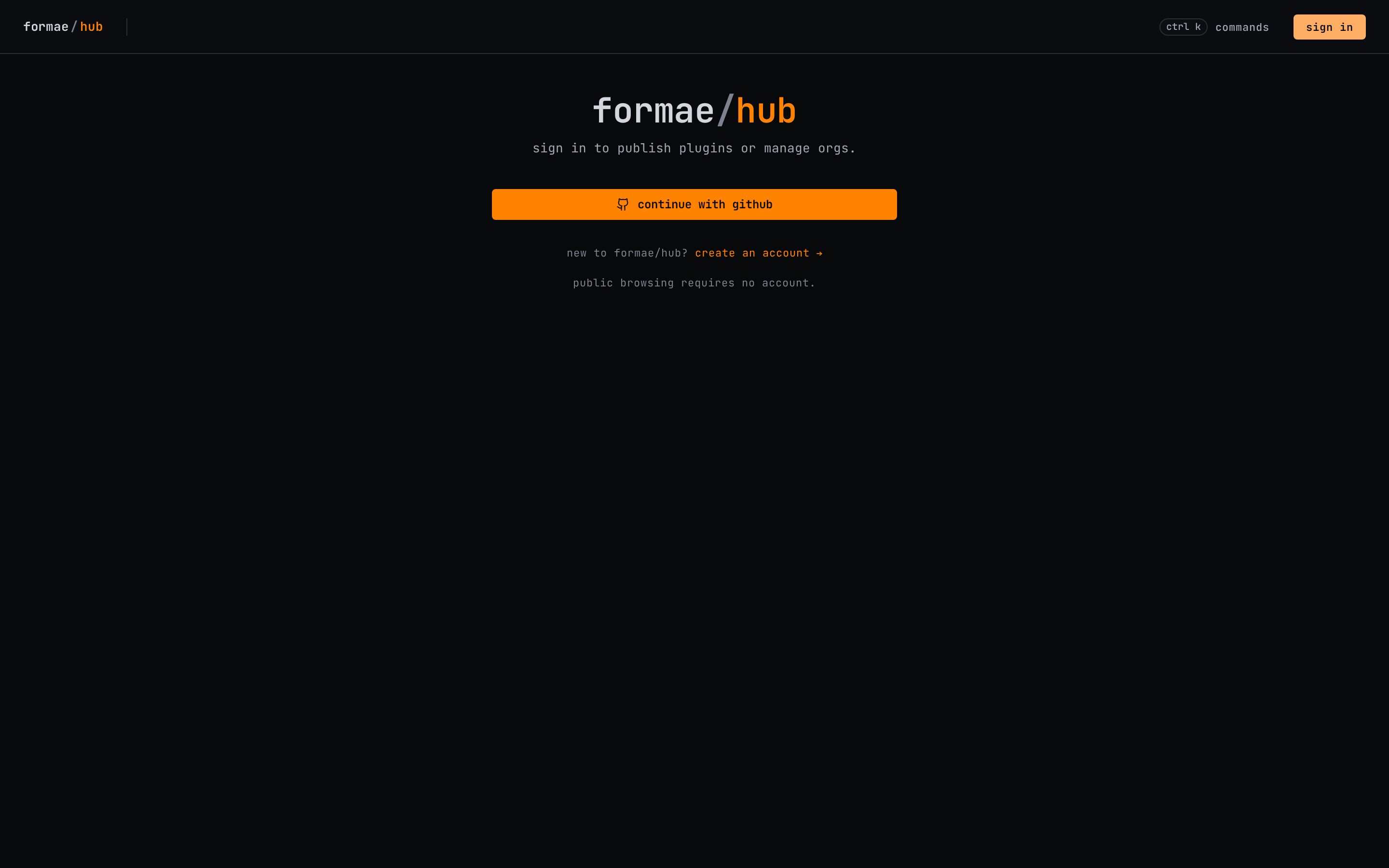
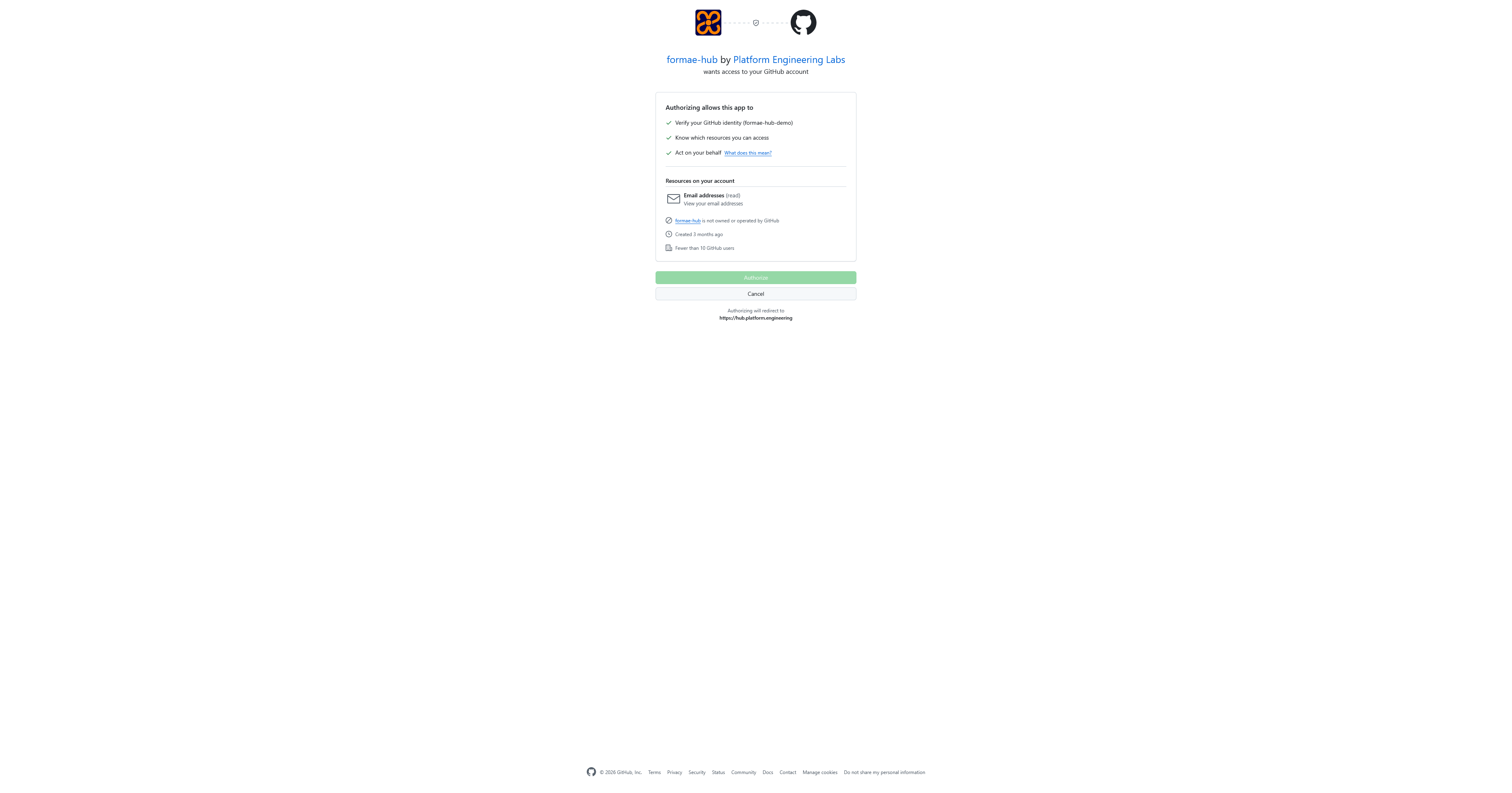
2
Create your organization
A new account does not belong to any organization yet, so your dashboard
shows a prompt to create one. Select create organization.
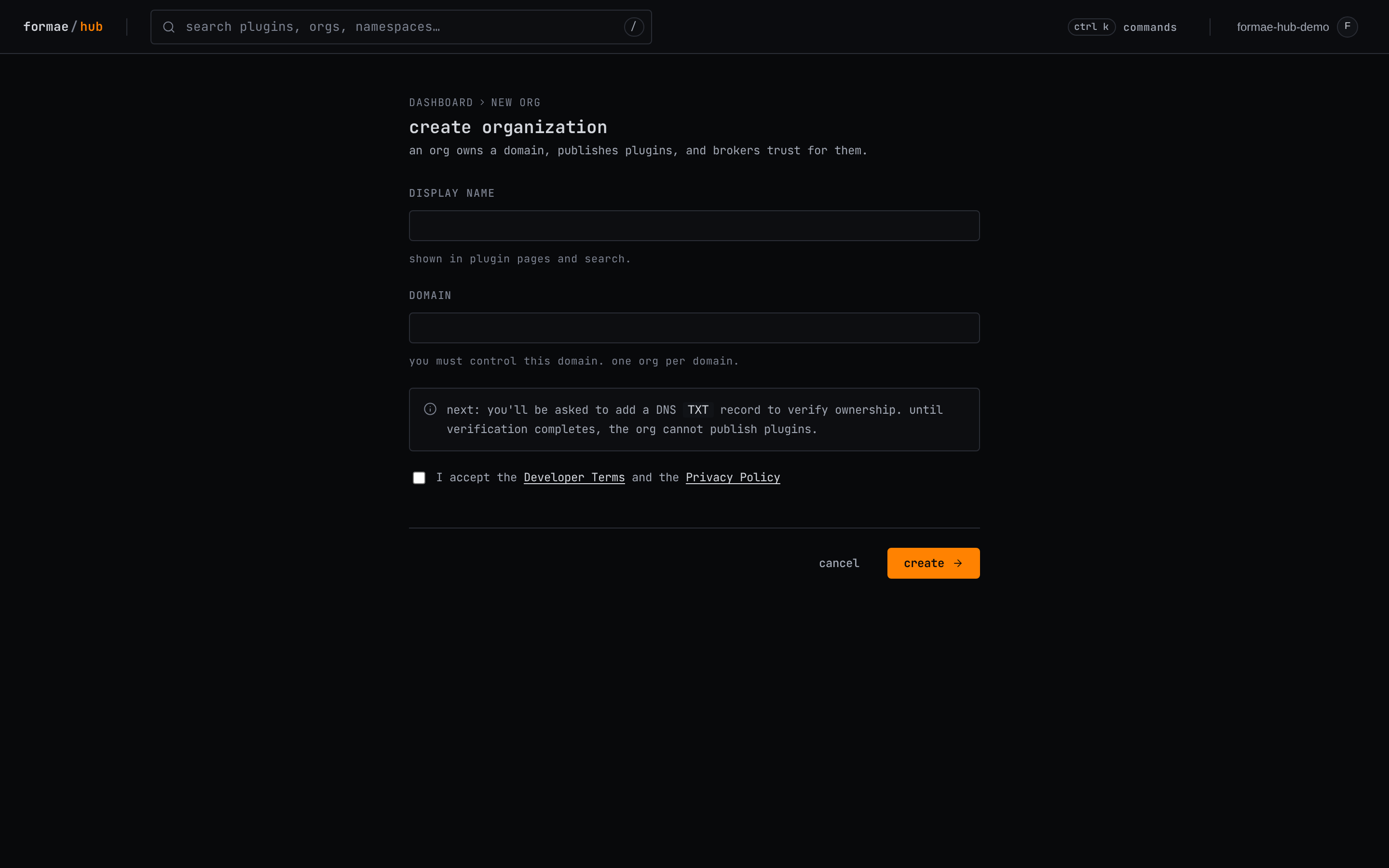
demo.example.com.3
Verify that you own the domain
The hub requires proof that you control the domain before it will publish
plugins under it. When you create the organization, the hub shows a DNS TXT
record to add.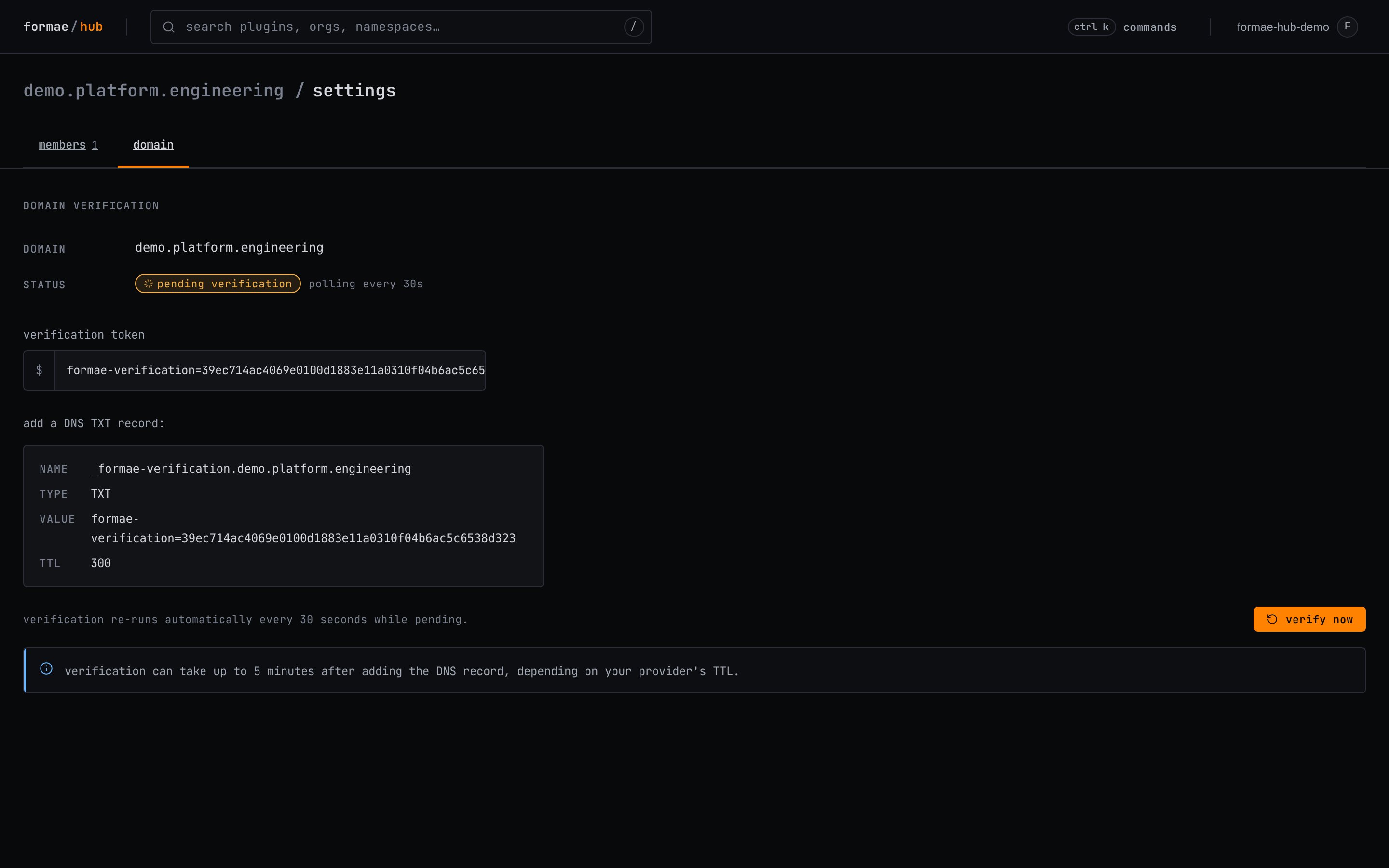
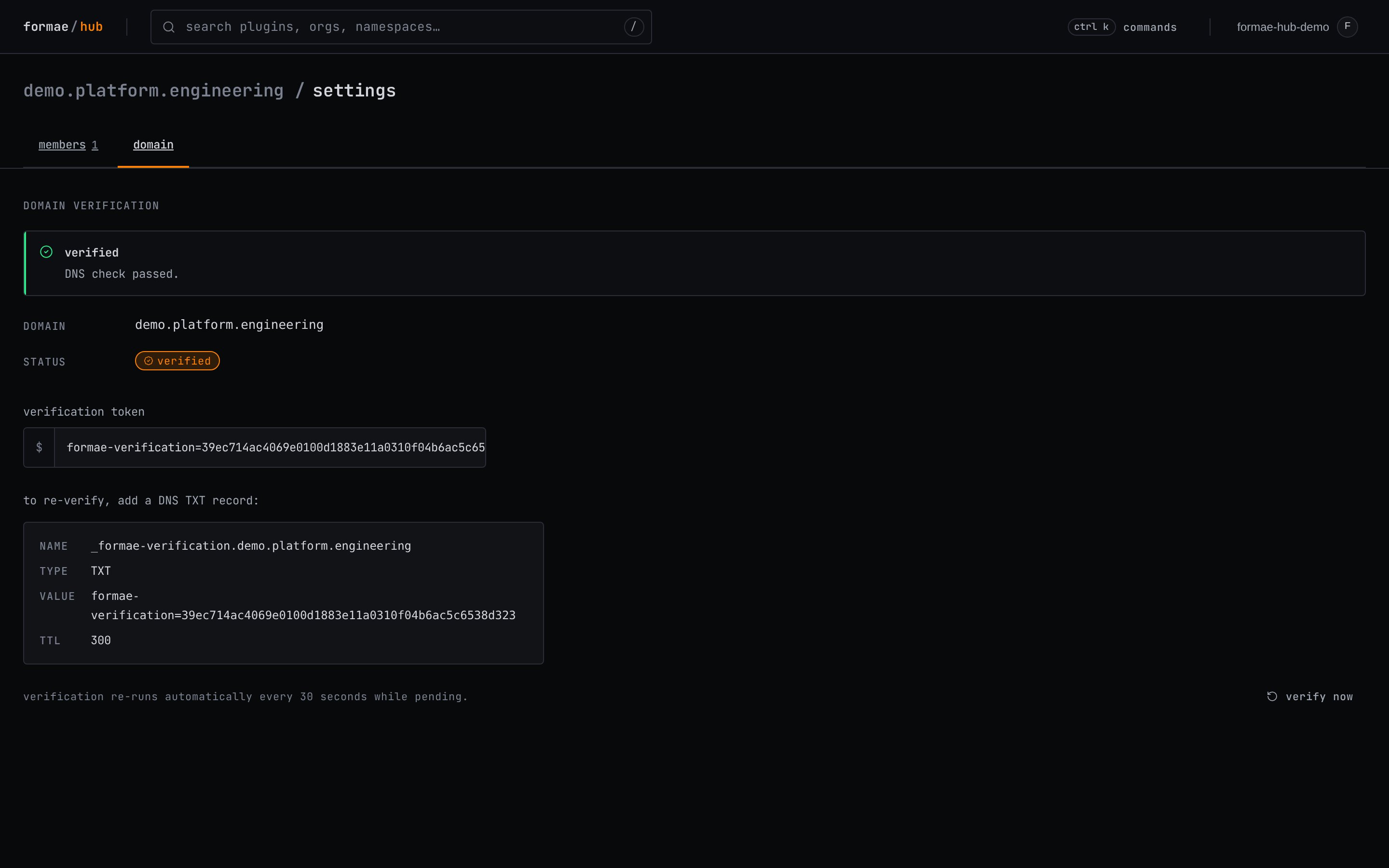
The hub re-checks the record every 30 seconds and marks the domain verified
once it resolves. Propagation can take a few minutes, depending on your
provider’s TTL. Until the domain is verified, the organization cannot publish
plugins.
See also
- Publish a plugin: register a plugin from a GitHub repository under your organization.
- Release a version: publish a version by pushing a git tag.